
Related to
SpinetiX HUBThe Account Settings section in SpinetiX HUB lets Global Admins manage key aspects of their organization’s account — including account details and product availability.
Note: Only Global Admins can view and manage Account Settings. If you don’t see these options, contact your Global Admin.
Where to find Account Settings
-
Go to Account Overview
From the home screen of SpinetiX HUB, go to Settings > Account Overview.
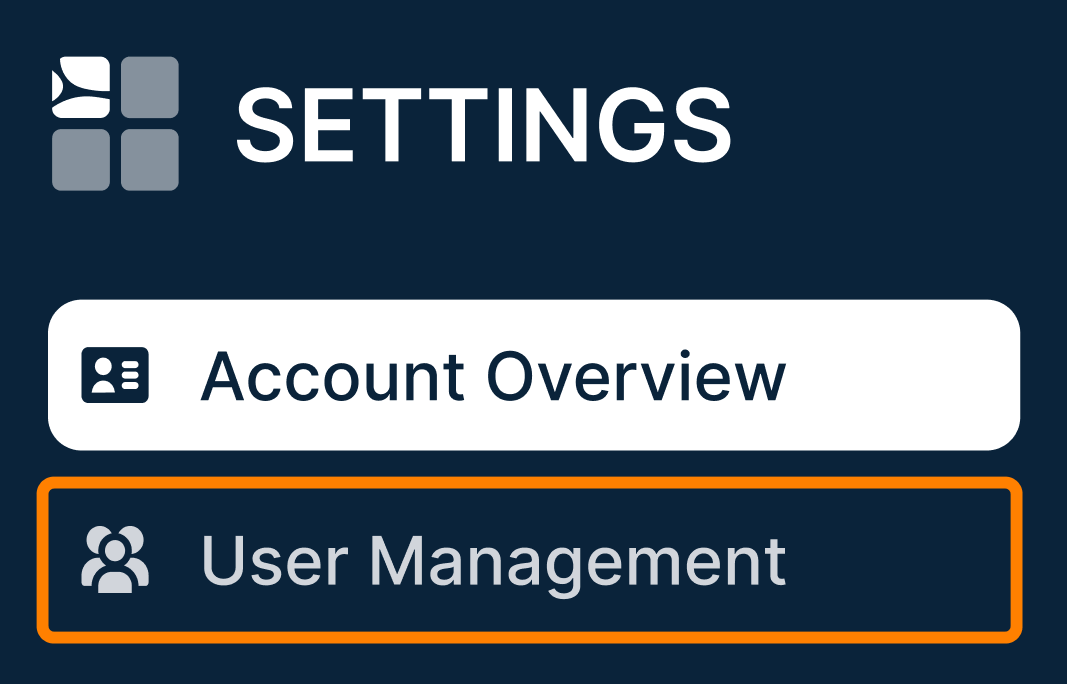
Here, you’ll find two main areas — Account Overview and User Management. Depending on what you need, choose one of the options below to continue:
Updating account details in Account Overview
-
Open Account Overview
In Account Settings, make sure you have Account Overview selected.
-
Edit account information
In Account Information, you can update:- Account Name – Name of your organization or team.
- Country – Country associated with your account.
Click Save to apply changes.
-
Review view-only fields
The following are informational and cannot be edited:- Account ID – Unique identifier for your account (handy for support and integrations).
- Data Storage Region – Where your organization’s data is stored.
Managing HUB products
-
View enabled and disabled products
Under SpinetiX HUB Products Activated in your Account, see- Enabled Products – Currently active and in use.
- Disabled Products – Available but not yet enabled.
-
Enable or disable products
Toggle product availability to match your team’s needs.Tip: For detailed instructions, see the Product Management in HUB article.
Managing users
Note: User permissions and access are handled in User Management. Refer to these dedicated articles:
– How can I invite new users to SpinetiX HUB
– How can I assign or unassign products to specific users
– How can I invite new users to SpinetiX HUB
– How can I assign or unassign products to specific users
Comments
0 comments
Please sign in to leave a comment.